Items
KronoGraph is a JavaScript library that lets you add Timeline components to your web applications. These components show the timelines of entities and the events that involve them, creating time-based data visualizations.
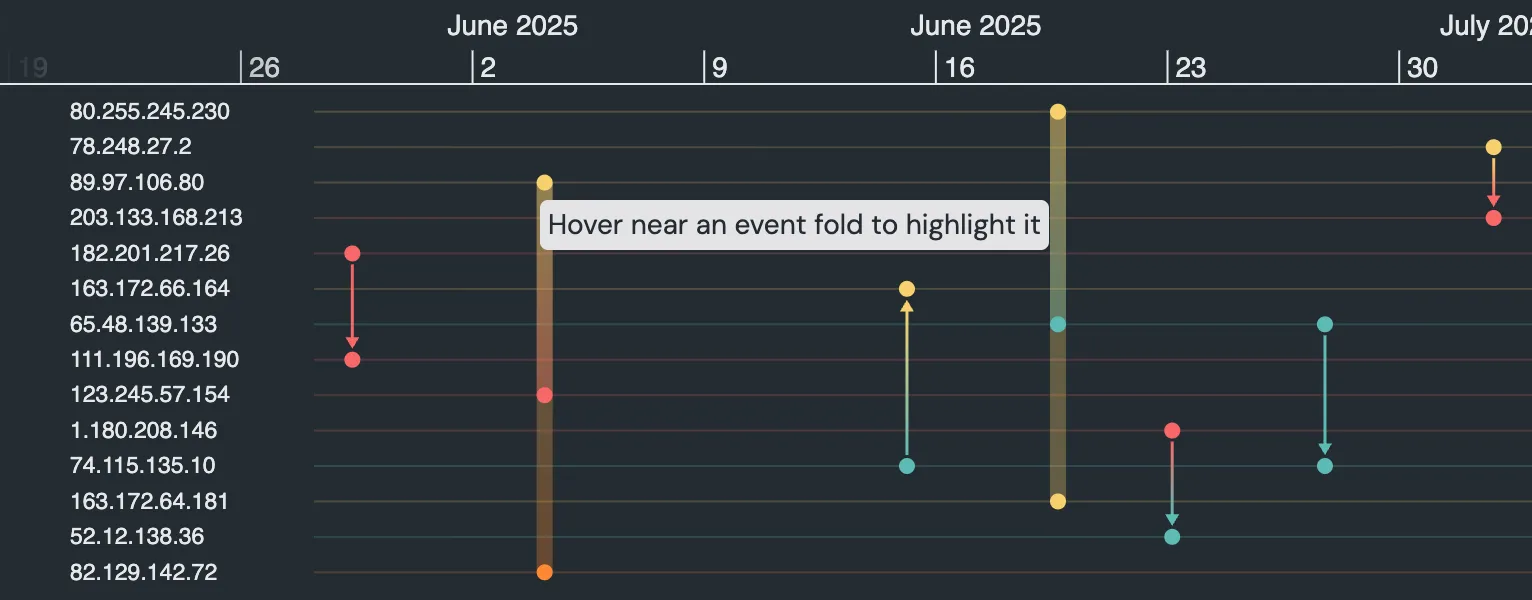
You can interact with items such as entities, events, annotations, lens view, markers, time series charts and more, as illustrated below.
Interactions
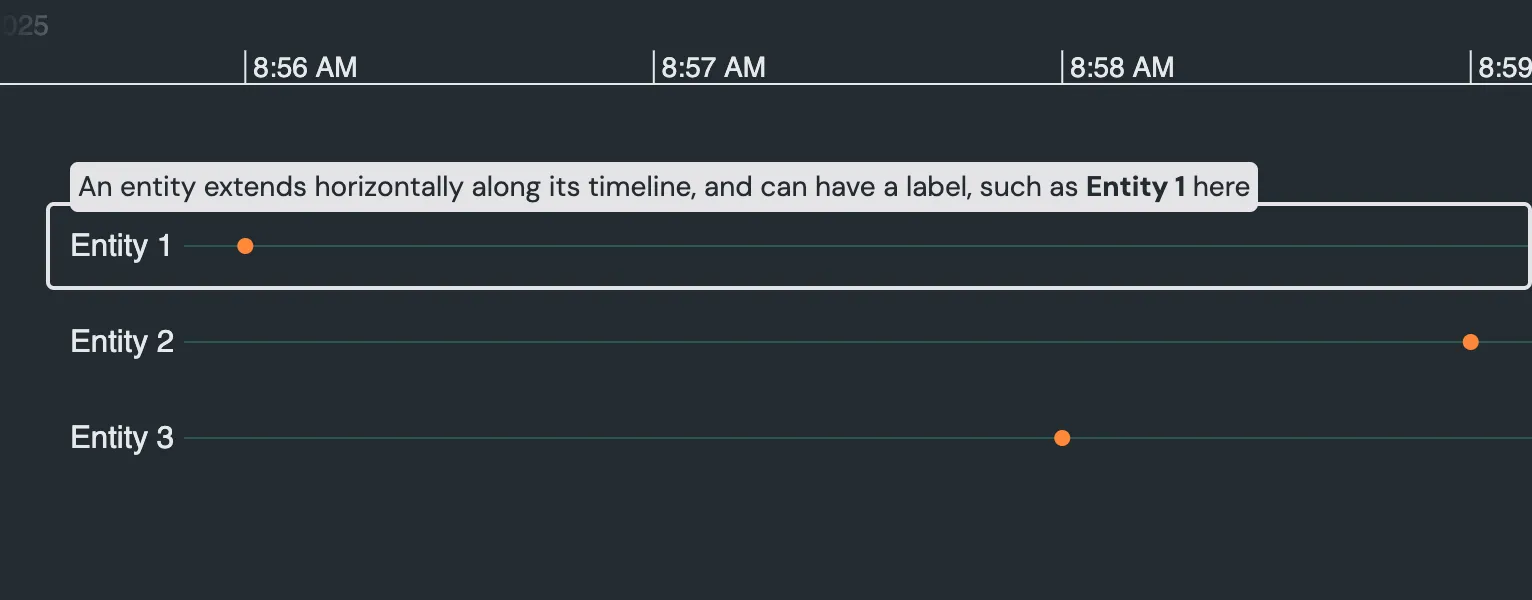
KronoGraph allows you to explore, and interact with, your data:
- Navigating timelines
- Selecting entities
- Pinning an entity
- Focusing an entity
- Magnifying entities
- Selecting events
- Interacting with event folds
Note KronoGraph automatically arranges entities more compactly as you zoom out. If you zoom out far enough, their labels and controls are no longer shown. The lens view control  on the left allows you to magnify entities, and see their labels.
Navigating Timelines
Navigate the timeline by:
- Dragging or scrolling horizontally to pan along it.
- Scrolling vertically to zoom in and out.
- Using Shift + drag to draw a selection marquee: KronoGraph then zooms into that selected time range.

Kronograph Example
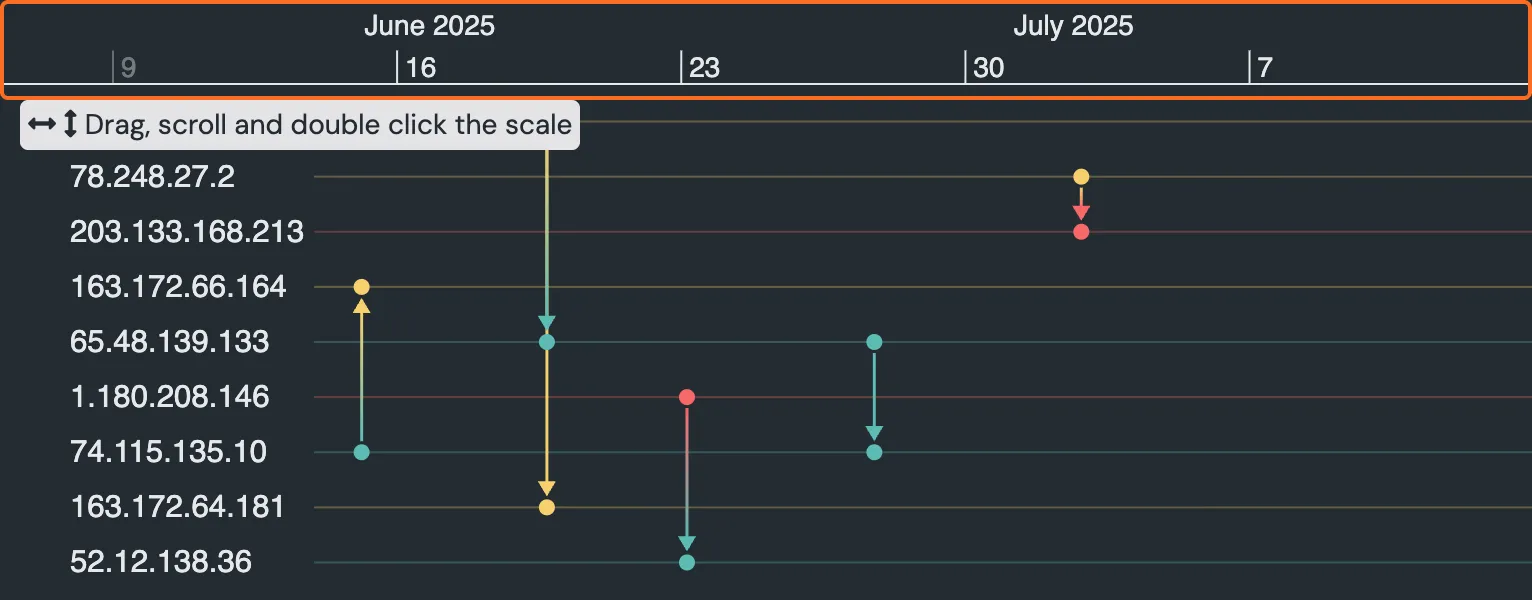
Log in to view live examplesWhen the timeline has a time scale (shown highlighted with a box below), you can also use that for navigation:
- Scroll the scale horizontally to pan along the timeline.
- Scroll it vertically to zoom in and out.
- Drag along the scale to draw a marquee: KronoGraph then zooms into that selected time range.
- Double-click it to zoom into the time period between adjacent vertical scale tick marks.
You can use timeline options to specify the position and appearance of the time scales.
Selecting Entities beta
When entitySelectionEnabled entitySelectionEnabled is set to true you can select entities.
- Click an entity to select it.
- Use Shift + click to select multiple entities.
To deselect entities:
- Click the timeline area to deselect all entities.
- Cmd + click (Ctrl + click for Windows) to toggle selection of a particular entity.
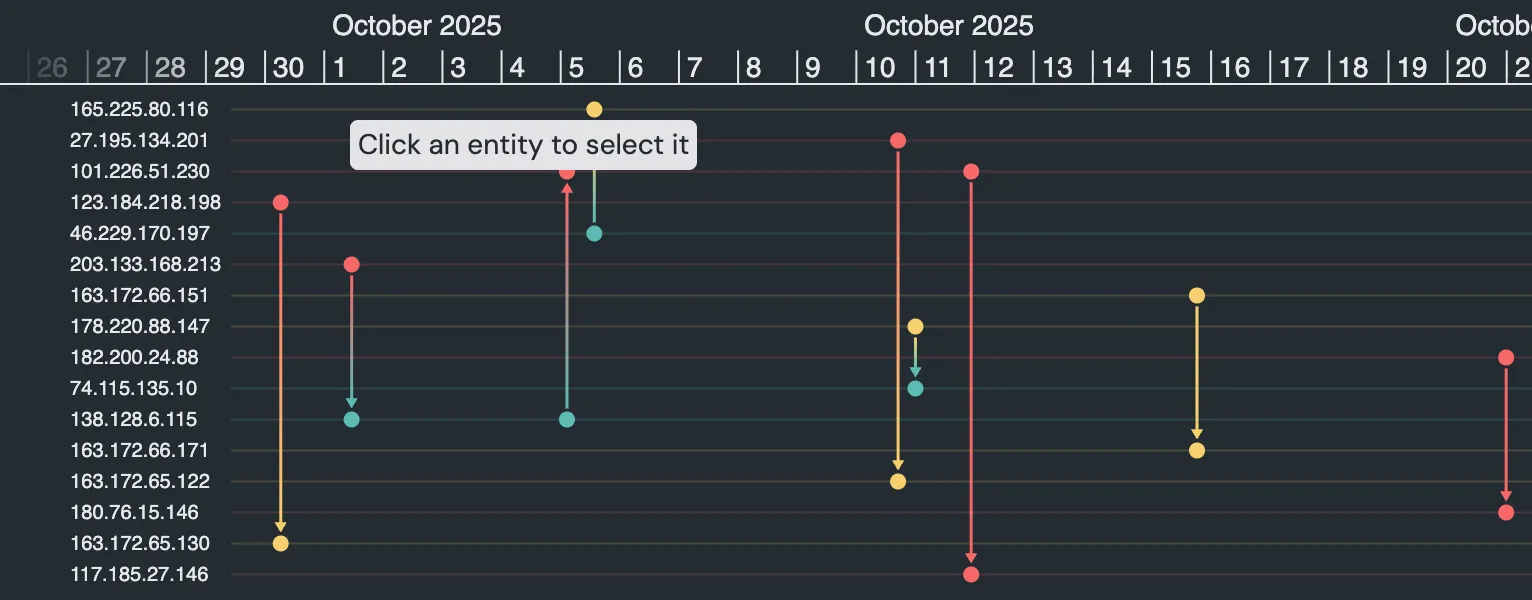
To get a list of selected entities use the entitySelection API. entitySelection API. An example of this is shown in the KronoGraph and KeyLines Basics story, KronoGraph and ReGraph Basics story, which also illustrates how entity selection compares to focusing on an entity.
It's also possible to select events.
Pinning an Entity
To keep one or more entities in view at all times, you can pin it.
To pin or unpin an entity, click its pin control 
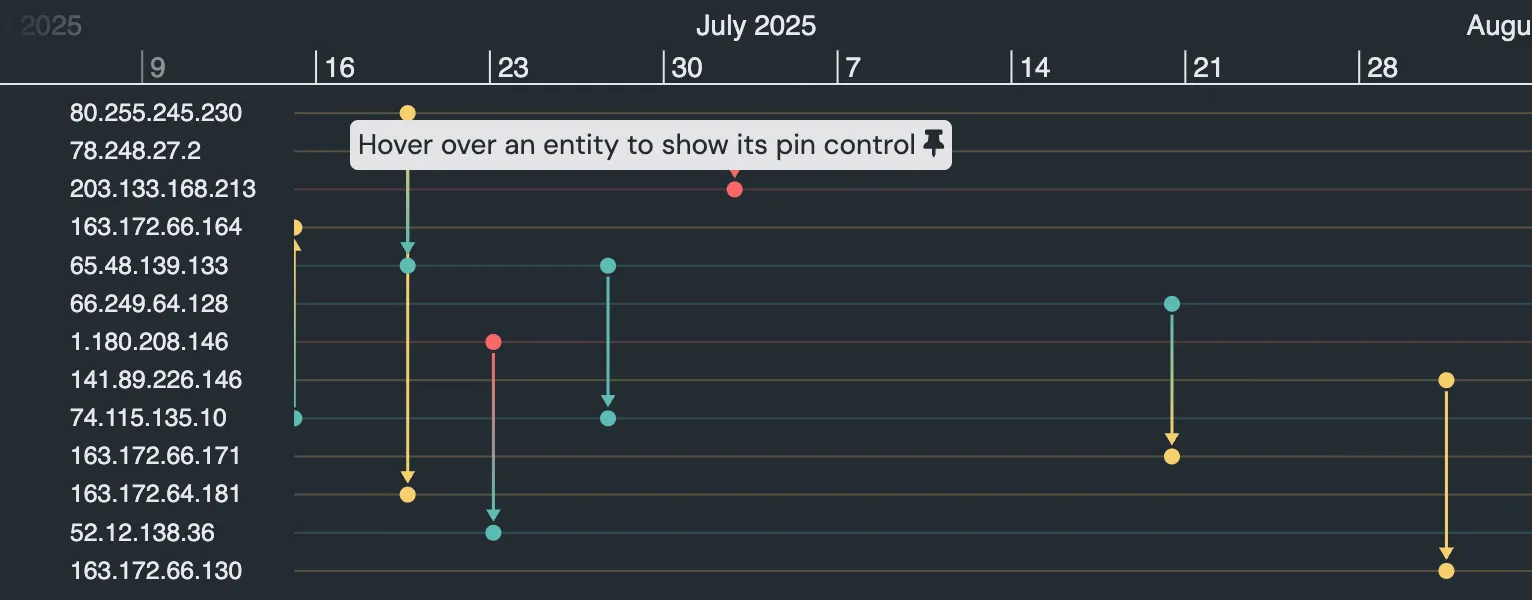
You can also use the timeline.pin function.
Focusing an Entity
To concentrate on a single entity, and the events it's involved with, you can focus it. An entity with focus is highlighted, and only events that involve it are shown.
To toggle the focus on and off for an entity:
- Click the focus control
- Double-click the entity's timeline
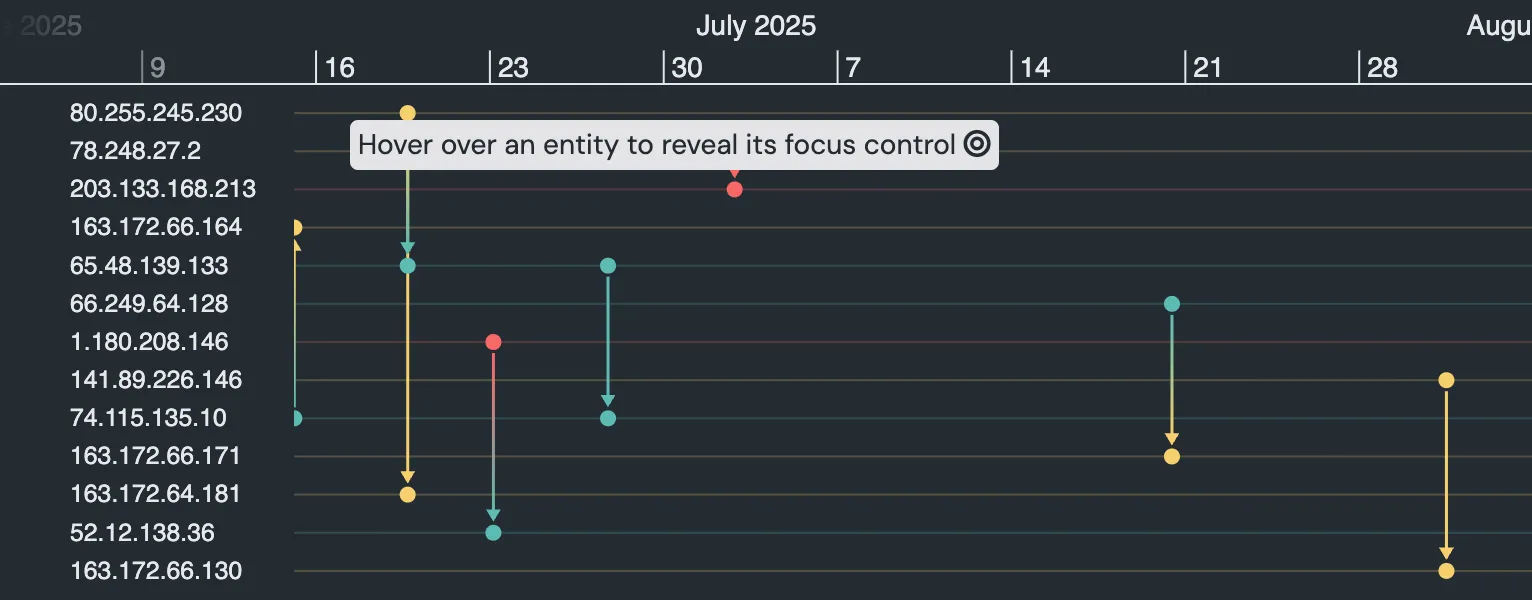
You can also use the focus API. focus prop.
Magnifying Entities
Entity labels are only displayed when there's enough vertical space. To view them when they're collapsed, you can use lens view. This magnifies the entities inside the highlighted band so you can read their names and see their controls. Scroll the label area vertically to move up and down through the entities.
To toggle lens view on and off:
- Click to open lens view.
- Click
 to close lens view.
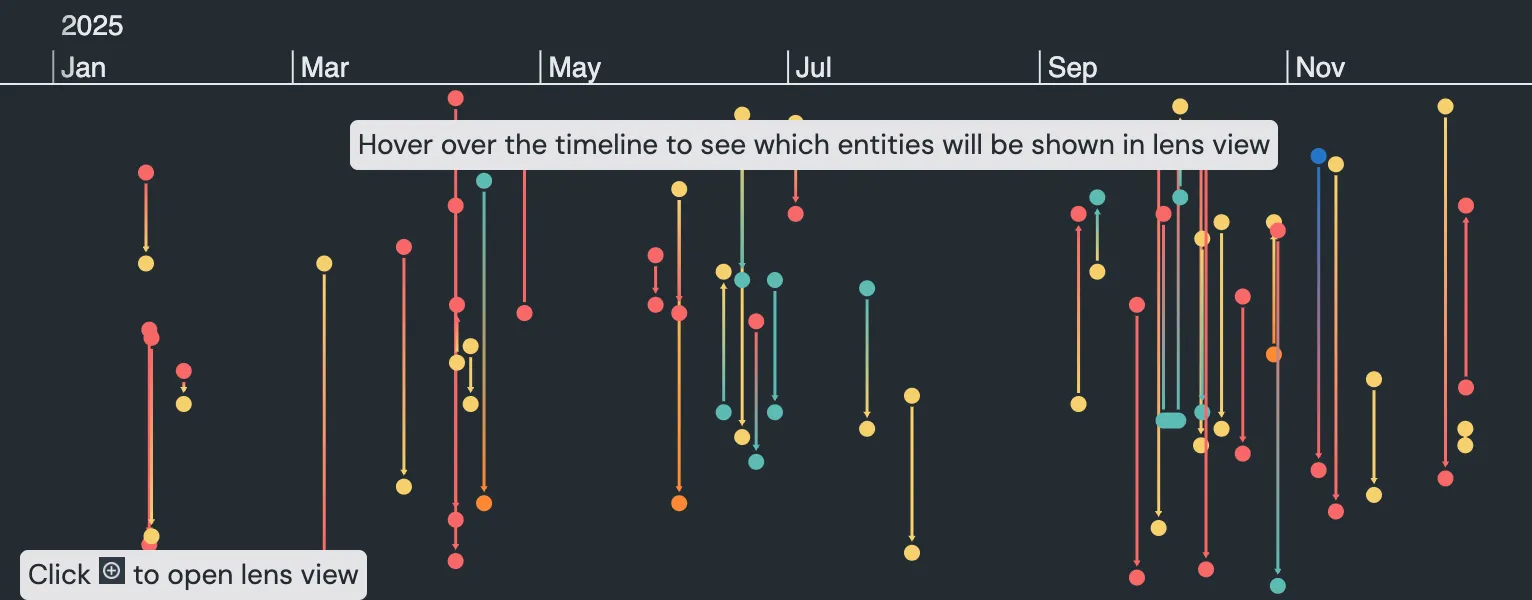
You can also use the timeline.lens function.
Selecting Events
Events are only selectable if eventSelectionMode eventSelectionMode is set to true. They are then shown with a highlight.
- Click events to select them.
- Drag to select multiple events.
- Shift + click, or Shift + drag, to add to the current selection.
To deselect events:
- Click the timeline area to deselect all events.
- Cmd + click (Ctrl + click on Windows) to toggle selection of a particular event.
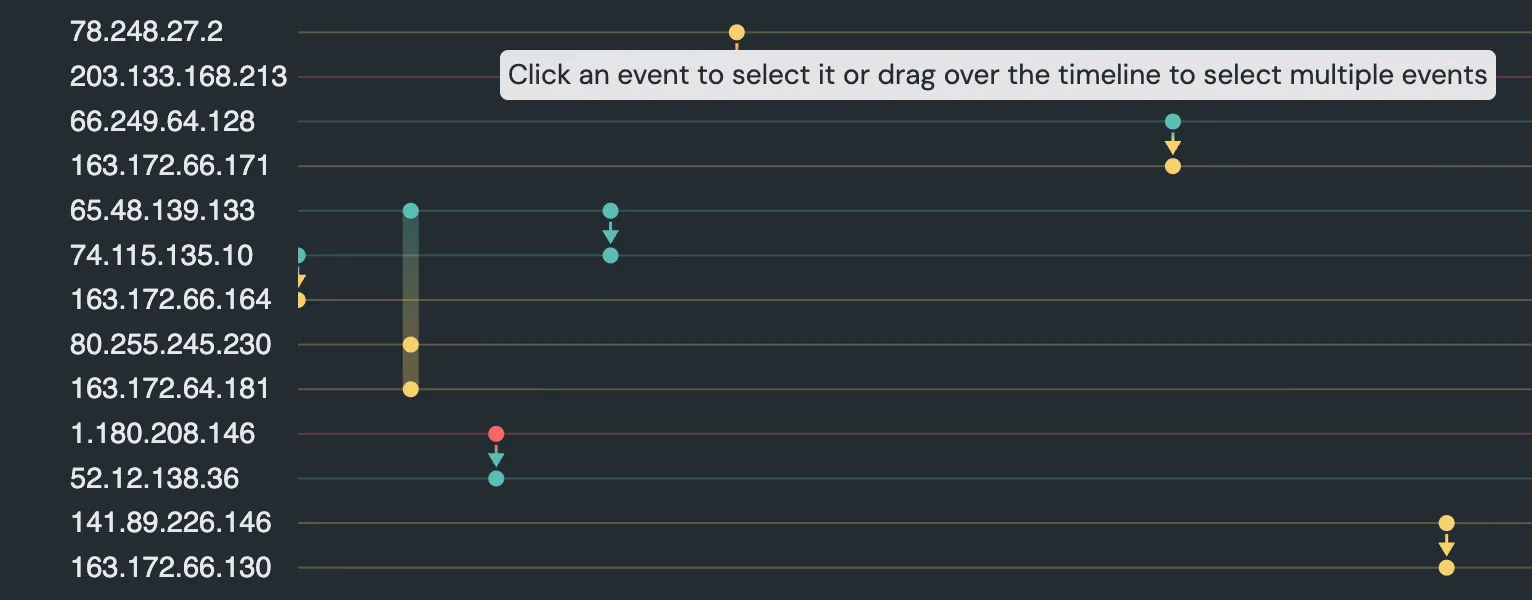
You can add annotations to selected events, as shown in the Creating Annotations example.
You can get a list of selected events using the eventSelection API. eventSelection prop.
It's also possible to select entities.
Interacting with Event Folds
Event folds are shown as broad vertical lines with diamonds and chevrons indicating where events are present.
When you hover near an event fold the background and chevrons are highlighted. To open a fold and display its individual events:
- Click the "<" or ">" on the fold.
- Click this highlighted area.
- Click the vertical line.
To close a fold:
- Click the "x" at the top of the fold.
- Click the open fold in the highlighted area, but not on an event itself.
- Click another fold: opening a fold closes any opened fold.