Font icons are vector-based glyphs embedded in font files, where specific character codes are mapped to icons instead of traditional letters or numbers. They are highly customizable as you can scale their size and dynamically change their color.
ReGraph lets you use font icons as node icons, glyph icons (on nodes, links, annotations and combos) and label icons (inside node and annotation labels).
See the Font Awesome, Material Icons and IcoMoon examples with different font icon libraries.
Adding font icons
- If you don't have a ReGraph project, follow the steps in Creating New App to create a quick app with a single "Hello World" node.
- This guide assumes that you are using ReGraph 5.4 or newer. To use it with older versions, see Troubleshooting.
To use font icons in ReGraph, you can load them from a variety of sources including:
- Using content delivery network (CDN) link
- Using a package manager to download a package
- Hosting downloaded files (eg. CSS or
.woffor.ttffiles)
For any source, we recommend using document.fonts from the CSS Font Loading API to ensure font icons are fully loaded before rendering. This approach is also used below.
First, open a new terminal in your project's root folder and install the latest version of your icons using your preferred package manager. We're using Font Awesome Free Icons.
npm install --save @fortawesome/fontawesome-freeyarn add @fortawesome/fontawesome-freepnpm install --save @fortawesome/fontawesome-freeIn the file where your ReGraph component is declared, import the font icon families and the React library. For the "Hello World" app, this is in my-regraph-app/src/App.jsx:
// src/App.jsx

import "@fortawesome/fontawesome-free/css/all.css"; // both solid and regular style
import React from "react"; // will be needed later
Next, set the default iconFontFamily in chart options. This is used unless a font family is explicitly set on the item/subitem in the fontFamily property.
// src/App.jsx

<Chart
  // ...
  options={{ iconFontFamily: "Font Awesome 6 Free" }}
/>;
Next, define and load the fonts and start the app once the fonts have loaded. Add the following code after the App() function:
// src/App.jsx

// lazy-loads the chart after the font is available
const FontReadyChart = React.lazy(() =>
  Promise.all([
    // include both as we imported all.css in step 2
    document.fonts.load('900 16px "Font Awesome 6 Free"'), // fas (solid, weight 900)
    document.fonts.load('400 16px "Font Awesome 6 Free"'), // far (regular, weight 400)
  ]).then(() => ({
    default: App,
  })),
);

// main component (Demo) renders ReGraph chart
// rendering suspended until fonts are ready
function Demo() {
  return (
    <React.Suspense fallback="Loading fonts...">
      <FontReadyChart />
    </React.Suspense>
  );
}

export default Demo; // replaces export default App; previously in your code
The font icons are now loaded and we can use them in our chart. Update the items prop in the App() function:
// src/App.jsx

  items={{
    node1: { label: { text: "Hello World!" } },
    node2: {
      label: [
        { fontIcon: { text: 'far fa-handshake' } },
        {
          fontIcon: { text: 'fas fa-globe', color: '#2B65EC' },
          position: { vertical: 'inherit' },
        },
    ]},
  }}
At the end of this step, you should see two nodes in your application - one with a text label and another one with font icons.
Font icon weights
Some font icons offer multiple font weights or styles as variants of the same font family.
For example, Font Awesome Free Icons are either Regular (far) or Solid (fas), which should be specified as part of the icon's CSS class name in the text property of fontIcon.
Others, such as Material Icons or Material Symbols, can include variants such as Filled, Outlined, Rounded or Sharp, where each variant must be imported separately and specified in the fontFamily property. The text property only requires the icon's ligature string.
To use a mix of weights or styles, declare a font family for each using @font-face in your CSS and give each a unique font-family name, for example:
/* Font weight of 300 */
@font-face {
  font-family: 'Material Symbols Sharp Thin'; /* a unique name in your CSS */
  font-style: normal;
  font-weight: 300;
  src: url(https://fonts.gstatic.com/s/materialsymbolssharp/v249/gNNBW2J8Roq16WD5tFNRaeLQk6-SHQ_R00k4c2_whPnoY9ruReaU4bHmz74m0ZkGH-VBYe1x0TV6x4yFH8F-H5OdzEL3sVTgJtfbYxPVojCLJ1H7-0Hk.woff2) format('woff2');
}

/* Font weight of 700 */
@font-face {
  font-family: 'Material Symbols Sharp Thick'; /* a unique name in your CSS */
  font-style: normal;
  font-weight: 700;
  src: url(https://fonts.gstatic.com/s/materialsymbolssharp/v249/gNNBW2J8Roq16WD5tFNRaeLQk6-SHQ_R00k4c2_whPnoY9ruReaU4bHmz74m0ZkGH-VBYe1x0TV6x4yFH8F-H5OdzEL3sVTgJtfbYxNspTCLJ1H7-0Hk.woff2) format('woff2');
}
See the Adding Fonts tutorial in the Fonts section for an example using @font-face rules.
The Material Icons example imports the variants as separate CDN links in the HTML tab.
Styling font icons
You can set a color as well as a custom fontFamily for the particular item's font icon inside the item's fontIcon property.
In addition, depending on the item where the font icon is used, ReGraph lets you customize its various properties:
- Node icons - Use
imageAlignmentto position the icon and scale the icon size. - Glyph icons (on nodes, links and annotations) - Use
imageAlignmentto position the icon and scale the icon size. - Label icons (on nodes and annotations) - Use the properties available for
node labelandannotation labelAPIs includingpositionorfontSize.
The example below uses Font Awesome Free Icons in Solid:

ReGraph Example
Troubleshooting
Font icons showing as a single letter
If you complete the Adding font icons guide and the font icons are not displayed, you might be using an older version of ReGraph. In ReGraph 5.3 or older, Web Font Loader was used as an internal dependency to load font icons. Upgrade ReGraph to the latest version and review and repeat the tutorial steps to fix this issue. If you need help upgrading, see the Updating documentation or contact [email protected]. | 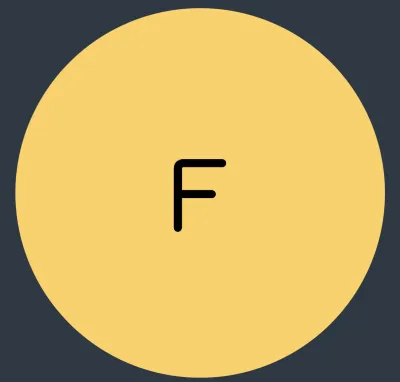 |
Font icons showing as plain text
If you complete the Adding font icons guide and the font icons are showing only as the plain text specified in the Review and repeat the steps in the tutorial and if the issue persists, contact [email protected]. | 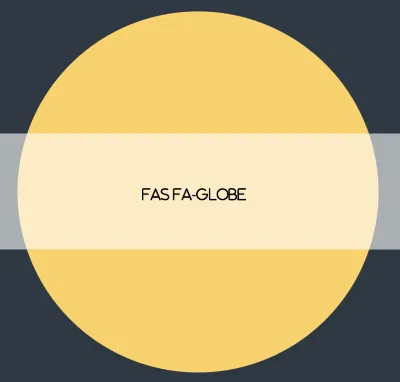 |
Font files loaded via CSS @import showing as a plain text
If you are importing font files using @import inside a CSS file, the validations in FontReadyChart can sometimes be executed before the CSS is processed. As a result, icons can fail to load and instead show as the plain text specified in the text option.
To fix this, include document.fonts.ready at the top of the chain of promises:
// lazy-loads the chart after the font is available
const FontReadyChart = React.lazy(() =>
  document.fonts.ready // resolves once the document has completed loading fonts
    .then(() =>
      Promise.all([
        // resolves when ALL the fonts are loaded
        document.fonts.load('1em "Material Icons"'),
        document.fonts.load('1em "Material Icons Outlined"'),
      ]),
    )
    .then((p) => ({
      default: App, // loads the component that includes ReGraph
    })),
);
Check the Material Icons demo for an example.
Material Icons / Material Symbols not showing
If your Google font icons are not showing, you may be using an older version of ReGraph or referencing them incorrectly. In ReGraph 5.3 or older, it was necessary to use the Unicode character of the icon, or to map the character to a class name using CSS, e.g.
.material-icons.person::before {
  content: '\e7fd';
}
And then to specify the icon:
fontIcon: {
  text: '\ue7fd',   // or 'material-icons person'
},
In ReGraph version 5.4 and newer, you can pass the ligature string of a Google fonts icon directly in the text property, such as text: 'person'.
We strongly recommend upgrading ReGraph to the latest version. If you want to continue using an older version, check that you are using the Unicode character as described.