There are various reasons why your charts may need a custom link design:
- To visualize direction, movement or volume of data
- To carry additional pieces of information
- To highlight different aspects of data
- To follow the specific design language of your application
Below are some examples of the ReGraph API for node styling:
arrowandglyphs: Can be set separately for each link endcolor: Can be set to same or different values for each end, creating a gradientflow: Sets a dashed animation on the linklabels: Sets a label in the middle of the linklineStyleandwidth: Sets a style and width of the linklinkShape: Sets the shape of link path
You can style the whole link, or style its individual ends using the end1 and end2 properties.
Explore various styles in the Link Gallery story.
Link Shapes
Link shape refers to the shape of a link path, and helps highlight particular aspects of your data structure for different chart layouts and combo arrangements. Direct links are used by default, but you can change that at chart level using the layout linkShape option. You can then fine-tune the appearance of your chart by specifying a different link shape at combo level using the arrangement linkShape option. See Using a mixture of link shapes for information about how to use multiple link shapes.
Link shape summary:
direct | The default. Direct links are straight lines that run directly between nodes. Well-suited to charts that concentrate on overall connectivity using organic, lens or radial layouts. | 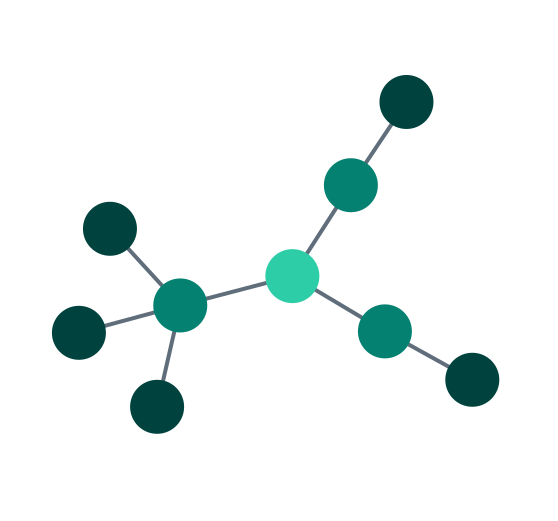 |
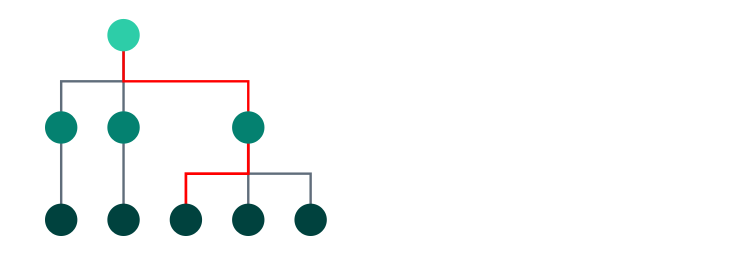
| Angled links provide an orthogonally branching shape between nodes in a hierarchical structure, aligned with layout orientation. Especially suited to sequential layouts. In beta from v5.1. Use priority links to highlight different paths, as shown in the Angled Links example. | 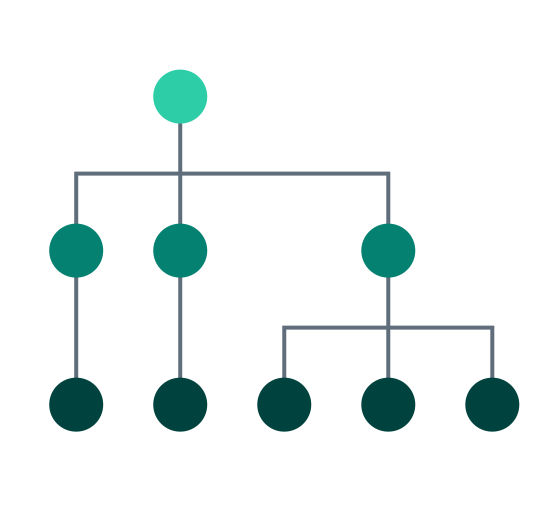 |
curved | Curved links follow a smooth path between nodes in different levels of a hierarchical structure, aligned with layout orientation. Useful for hierarchical data, especially sequential layouts. | 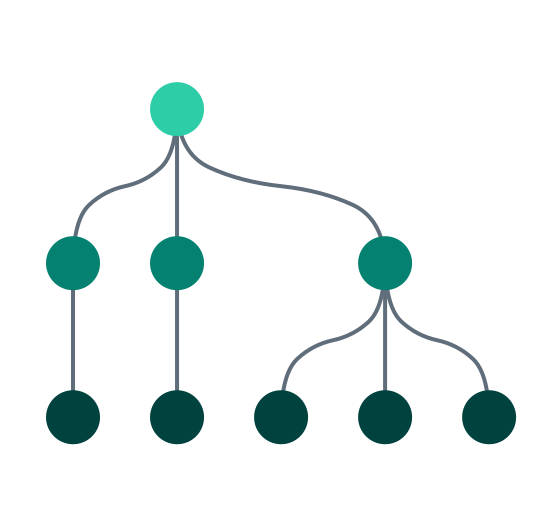 |
Leaflet Integration always uses direct links.
Using a mixture of link shapes
In addition to using an overall link shape for your chart layout, with perhaps another for combo arrangements, you can also specify the link shape for an individual link, which takes precedence.
Setting an individual link's linkShape property, specifies its shape, and the direction in which it connects to its end nodes. This can be useful to represent different types of relationship in your chart.
For example, you might have a chart with a sequential component using angled links, and want to show the relationship between that, and another set of nodes, using curved links, as shown.
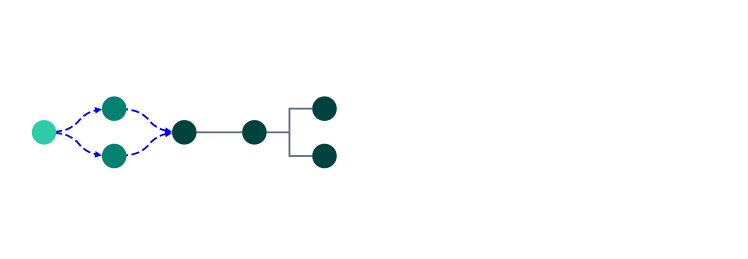
Learn more in the Mixed Link Shapes example.
Multiple links between two nodes
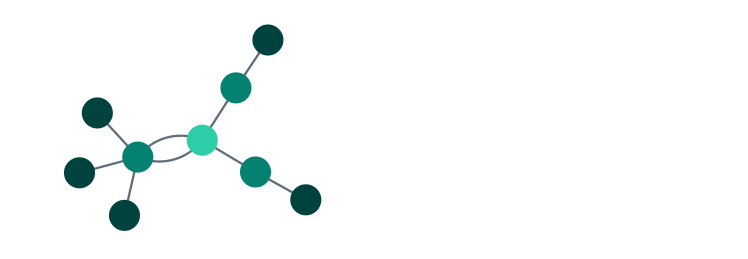
By default ReGraph automatically spaces out multiple direct or curved links (as described in Link Shapes) running between two nodes by separating their midpoints. Direct links are separated to follow arcs, as shown, while curved links follow double curves.
Angled links can't helpfully be separated this way, so to focus on a critical path through a chart using angled links, use priority links.
Priority Links
To help focus on a particular path through a dense and overlapping network of nodes and links, you can assign priority to particular links to show them clearly, and in front of other links. This can be useful when using angled links, as illustrated, which can overlap each other.
Explore the use of link priority, used to highlight the attack path in the Cloud Security showcase.