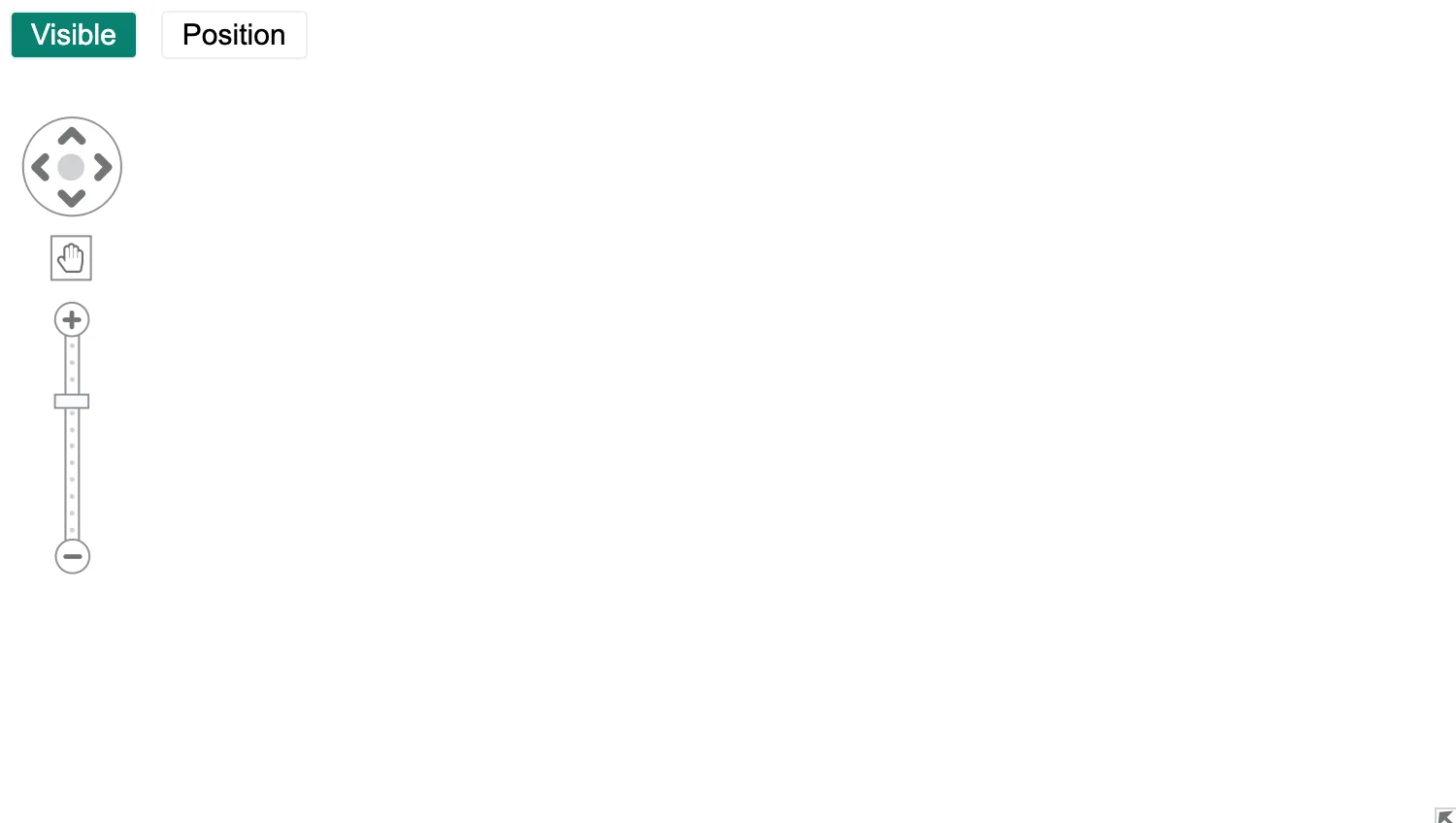
Click on the buttons above the chart to move the navigation controls.
You can also build your own custom navigation controls. See how to do this in the Toolbar example.
See also
import React from "react";
import { createRoot } from "react-dom/client";

import { Chart } from "regraph";

import "@ci/theme/rg/css/button.css";
import "@ci/theme/rg/css/layout.css";

export const Demo = () => <Navigation />;

const positions = ["nw", "ne", "se", "sw"];

class Navigation extends React.Component {
  constructor(props) {
    super(props);
    this.state = {
      visible: true,
      positionIndex: 0,
    };
  }

  togglePosition = () => {
    let { positionIndex } = this.state;
    if (positionIndex >= positions.length - 1) {
      positionIndex = 0;
    } else {
      positionIndex += 1;
    }
    this.setState({
      positionIndex,
      visible: true,
    });
  };

  toggleVisibility = () => {
    const { visible } = this.state;
    this.setState({
      visible: !visible,
    });
  };

  render() {
    const { positionIndex, visible } = this.state;
    return (
      <div className="story">
        <div className="options">
          <button
            type="button"
            className={visible ? "active" : ""}
            onClick={this.toggleVisibility}
          >
            Visible
          </button>
          <button type="button" onClick={this.togglePosition}>
            Position
          </button>
        </div>
        <div className="chart-wrapper">
          <Chart
            options={{
              navigation: { visible, position: positions[positionIndex] },
            }}
          />
        </div>
      </div>
    );
  }
}

const root = createRoot(document.getElementById("regraph"));
root.render(<Demo />);<!doctype html>
<html>
<body>
<div id="regraph" style="height: 100vh"></div>
<script type="module" src="./code.jsx"></script>
</body>
</html>