The viewport is the area of the map that is currently being displayed. By default, MapWeave shows the full map provided by your adapter, but also allows users to control the viewport by providing bounds or a view.
The viewport is the area of the map that is currently being displayed. By default, MapWeave fits the viewport to the layer content on the first load, but also allows users to control the viewport by providing bounds or a view.
Bounds
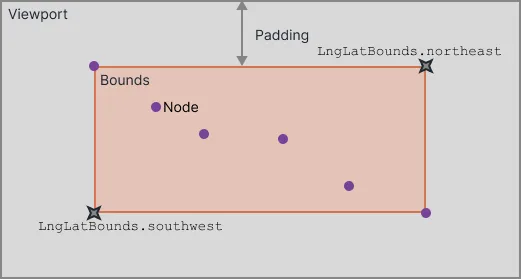
In MapWeave, bounds describe a rectangle that defines the maximum extent of a set of geographical data (network, observations or GeoJSON) by the latitude and longitude of its northeast and southwest corners. In the image below, an orange rectangle represents the bounds of the data, which are specified by the LngLatBounds object.
Fit Bounds
It is often useful for the viewport to only show the area of the map that contains data. In the example below, the stations for the Metro 1 line of the Paris Metro are shown as nodes in the network layer.
By default, the fitOnFirstLoad option is set to true, so the viewport automatically fits the bounds of the content. However, this example shows how to use the fitBounds method with the useRef and useEffect React hooks. A code snippet is shown below, or open the example in the playground to see the full code.
Set the viewport to fit the bounds of the content using fitBounds(). If no FitBoundsOptions are passed to fitBounds(), the viewport includes all the data for all layers in the map and applies auto padding.
mapweave.fitBounds();A visual representation of the bounds of the data is shown with the orange GeoJSON rectangle. The distance between the orange rectangle and the edge of the viewport is the padding.

MapWeave Example
Log in to view live examplesMapWeave Example
Log in to view live examplesfunction App() {
const mapweaveRef = useRef(null); // declare the ref
useEffect(() => {
mapweaveRef.current.fitBounds(); // call fitBounds with useEffect
}, []);
return (
// pass the ref to the MapWeave component
<MapWeave options={options} ref={mapweaveRef}>
<NetworkLayer data={parisMetro} />
</MapWeave>
);
}Get Bounds
It's also possible to show only a subset of data in the viewport. The bounds of layers or items within layers are found with the getBounds() layer methods.
Using the same Paris Metro data, getBounds() is used to set the viewport to show only the four stations closest to The Louvre Museum. Once we have the bounds of the stations, they are passed to fitBounds() to set the viewport with a padding of 20 pixels.
It's also possible to show only a subset of data in the viewport. The bounds of layers or items within layers are found with the getBounds instance method.
In this example, the viewport is set to the bounds of the subset of data with the useRef and useEffect React hooks. There is a ref for the MapWeave component and another for the network layer. The networkLayerRef stores the bounds of those nodes that are passed to the mapweaveRef, fitting the viewport to those bounds and applying padding of 20 pixels.
MapWeave Example
Log in to view live examplesMapWeave Example
Log in to view live examples// get the bounds of the stations
const louvreBounds = networkLayer.getBounds([
"Concorde",
"Tuileries",
"Palais Royal - Musée du Louvre",
"Louvre - Rivoli",
]);
// pass the bounds object to fitBounds
mapweave.fitBounds({ bounds: louvreBounds, padding: 20 });function App() {
const mapweaveRef = useRef(null); // declare a ref for MapWeave
const networkLayerRef = useRef(null); // declare a ref for the network layer
useEffect(() => {
if (!mapweaveRef.current || !networkLayerRef.current) return;
// use the networkLayerRef with getBounds to get the bounds
// of the four stations near the Louvre
const louvreBounds = networkLayerRef.current.getBounds([
"Concorde",
"Tuileries",
"Palais Royal - Musée du Louvre",
"Louvre - Rivoli",
]);
// use the mapweaveRef with fitBounds to fit the viewport to the bounds of the stations
mapweaveRef.current.fitBounds({ bounds: louvreBounds, padding: 20 });
}, [networkLayerRef]);
return (
// pass the mapweaveRef to the MapWeave component
<MapWeave options={options} ref={mapweaveRef}>
{/* pass the networkLayerRef to the NetworkLayer component */}
<NetworkLayer data={parisMetro} ref={networkLayerRef} />
</MapWeave>
);
}View
MapWeave also allows direct control of the viewport by passing a ViewState object to the view() method. The ViewState specifies the latitude and longitude of the center of the map as well as the zoom level, pitch and bearing.
MapWeave also allows direct control of the viewport by passing a ViewState object to the view prop. The ViewState specifies the latitude and longitude of the center of the map as well as the zoom level, pitch and bearing.
MapWeave will return a SizedViewState object using the same method, which includes the width and height of the viewport in pixels.
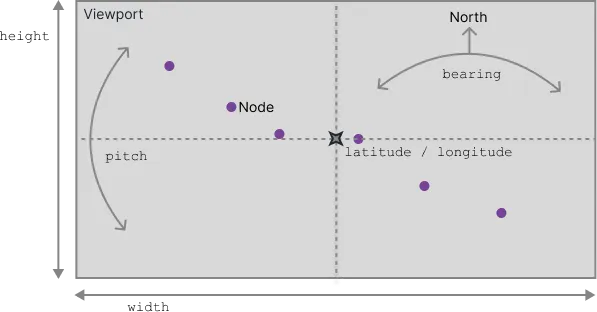
Interact with the map below using zoom (scroll), pan (click + drag) or rotate (ctrl + click + drag) to see how the SizedViewState changes.
MapWeave Example
Log in to view live examplesMapWeave Example
Log in to view live examples