Styling Items
Chart items such as nodes, links and annotations support a wide variety of customization options to make them suit your application. To do this, set properties on the item definitions in the items prop.
When you select a node or a link (default by clicking), it is styled with a selection style. This style is set using the selection property.

ReGraph Example
Log in to view live examplesExplore various styles in the Node Gallery, Link Gallery and Advanced Annotation Gallery stories.
Sub-items
As well as customizing chart items, you can also specify various sub-items.
Sub-items are either decorations on chart items (such as labels or glyphs), or parts of chart items themselves (such as an annotation container). Sub-items can respond to events. The following sub-items can also have their own style rules:
- Halos - rings around nodes. The default node selection style uses halos. Each node support up to ten halos at any one time.
- Glyphs - decorations on nodes annotations, combos, or links. On nodes, annotations and combos, glyphs are placed around the border. On links, glyphs are placed next to the label at the link center or at link ends.
- Donuts - segmented borders around nodes which can indicate trends or relationships within that node, similar to a pie chart.
- Labels - additional information, such as text, font icons or images, to display with nodes, annotations or links.
The following example shows sub-items in action:
ReGraph Example
Log in to view live examplesFor more details and a full list of sub-item types, see the Sub-item section in the API Reference.
Interaction styling
Interaction styling is applied when an item or sub-item is interacted with, i.e. hovered or selected. The styling changes back to the values defined in the items prop automatically once the interaction is finished. This means that you don't need to manage item state when applying different styles for hovered or selected items. To apply interaction styling, use the onItemInteraction event and pass the new styling to the event's setStyle function.
If you're using both onItemInteraction and the selection Chart option to style an item, only the styling specified for selection will be applied.
ReGraph Example
Log in to view live examplesLink Shapes
Link shape refers to the shape of a link path, and helps highlight particular aspects of your data structure for different chart layouts and combo arrangements. Direct links are used by default, but you can change that at chart level using the layout linkShape option. You can then fine-tune the appearance of your chart by specifying a different link shape at combo level using the arrangement linkShape option. See Using a mixture of link shapes for information about how to use multiple link shapes.
Link shape summary:
direct | The default. Direct links are straight lines that run directly between nodes. Well-suited to charts that concentrate on overall connectivity using organic, lens or radial layouts. | 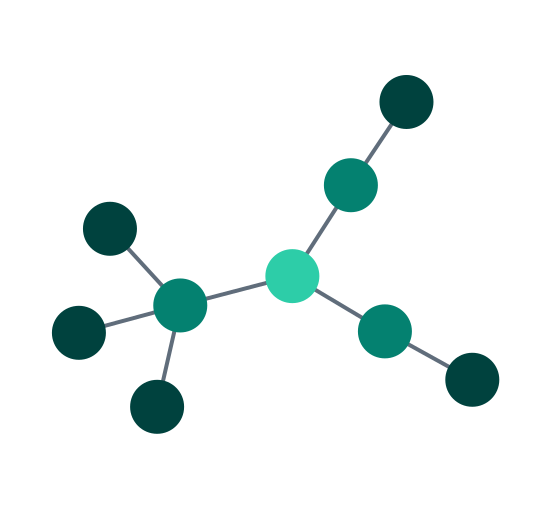 |
| Angled links provide an orthogonally branching shape between nodes in a hierarchical structure, aligned with layout orientation. Especially suited to sequential layouts. In beta from v5.1. Use priority links to highlight different paths, as shown in the Angled Links story. | 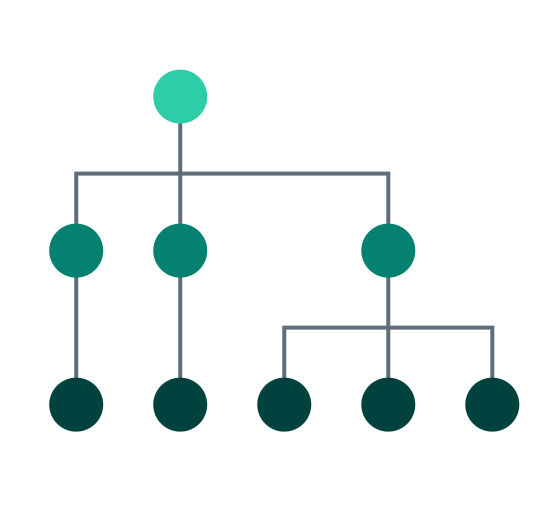 |
curved | Curved links follow a smooth path between nodes in different levels of a hierarchical structure, aligned with layout orientation. Useful for hierarchical data, especially sequential layouts. | 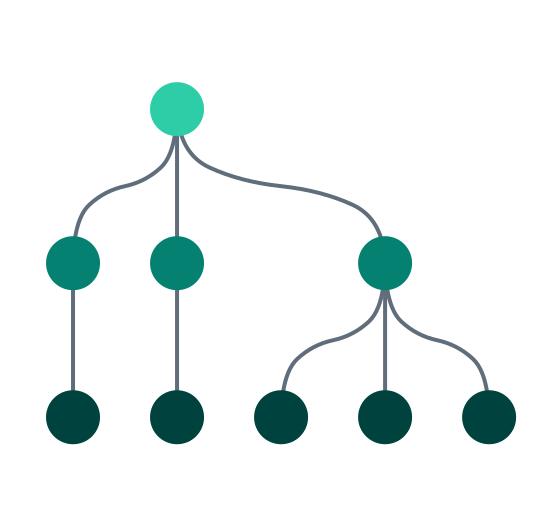 |
Leaflet Integration always uses direct links.
Using a mixture of link shapes
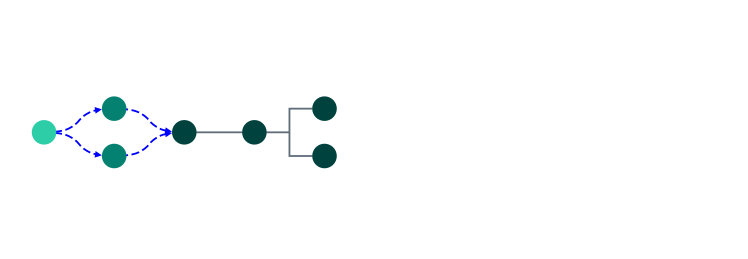
In addition to using an overall link shape for your chart layout, with perhaps another for combo arrangements, you can also specify the link shape for an individual link, which takes precedence.
Setting an individual link's linkShape property, specifies its shape, and the direction in which it connects to its end nodes. This can be useful to represent different types of relationship in your chart.
For example, you might have a chart with a sequential component using angled links, and want to show the relationship between that, and another set of nodes, using curved links, as shown.
Explore this further in the Mixed Link Shapes story.
Multiple links between two nodes
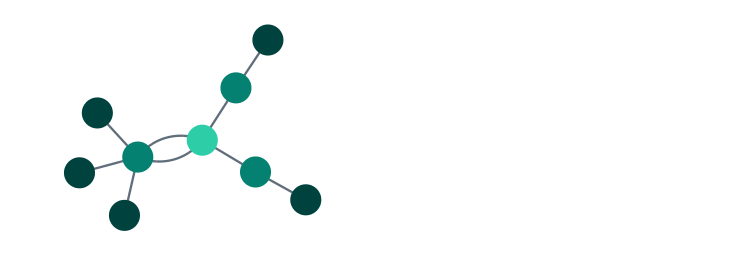
By default ReGraph automatically spaces out multiple direct or curved links (as described in Link Shapes) running between two nodes by separating their midpoints. Direct links are separated to follow arcs, as shown, while curved links follow double curves.
Angled links can't helpfully be separated this way, so to focus on a critical path through a chart using angled links, use priority links.
Priority Links
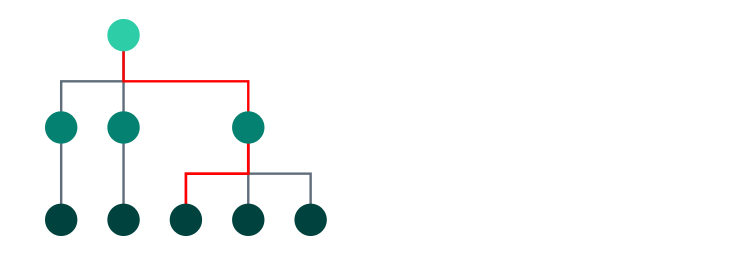
To help focus on a particular path through a dense and overlapping network of nodes and links, you can assign priority to particular links to show them clearly, and in front of other links. This can be useful when using angled links, as illustrated, which can overlap each other.
Explore the use of link priority, used to highlight the attack path in the Cloud Security showcase.
Advanced Node Styling
There are various reasons why your charts may need a custom node design:
- A high level of information (e.g. several pieces of information shown by single node)
- Dynamically changing data (e.g. strings or numbers in varying length)
- Different types of data (e.g. visual or numeric information, relative amounts)
- The specific design language of your application
Below are some examples of the ReGraph API for advanced node styling:
shape: Setswidthandheightto get rectangular nodes.radius: Sets corner radius to nodeborder.label: Accepts an array of one or more objects to create multiple labels with a large number of customizable properties such asimage,position,border,margin,paddingortextAlignment. This feature is currently in beta. See the Node Label API for details.
If your nodes contain images or font icons, you can control their scale and position using imageAlignment.
For more examples, see also the Node Gallery and Advanced Node Gallery stories.
ReGraph Example
Log in to view live examplesLabel positioning
Labels are anchored to nodes from the outside or from the inside.
The position property accepts a string compass value to set the label outside the node, or an object with vertical and/or horizontal properties to set the label inside the node.
Set the position of images and font icons within node labels using position and margin. You can also control the scale of font icons using fontSize.
ReGraph Example
Log in to view live examplesMultiple inline labels
By default, multiple labels on a node are stacked vertically from the top. There are two ways how to position multiple labels on the same line using the vertical option of position:
- set it to 'inherit' if the preceding label label has no
verticalposition set - set it to the same value if the preceding label has a
verticalposition set
ReGraph Example
Log in to view live examplesLabel sizing and label content
A label can either contain an image or text-based information such as text or a font icon.
Image labels have image set, and can be sized by specifying both maxWidth and maxHeight. You can also specify border and position them using margin and position, but other label settings are ignored.
Labels containing text or a font icon are sized, by default, to fit the content that's inside. In this case the ReGraph API lets you modify the label size and also customize the content inside:
minWidth,minHeight: Set custom label size.textAlignment: Sets the alignment of content inside a labelfontSize:'auto': Scales the font to any label size and zoom level.textWrap:'normal': Wraps the content on whitespace.maxWidth,maxHeight: Controls maximum size when text wrapping or automatic font sizing are used.
ReGraph Example
Log in to view live examplesLabel margin and padding
You can set margin and padding to fine-tune label spacing and position:
- Specify
marginby setting the distance between the label edge and either another label edge, or its parent node edge. This API behaves like, and can be set similarly to, W3C CSS margin. - For non-image labels, set the
paddingproperty which is specified, and behaves like, W3C CSS padding. This doesn't apply to image labels because the image always fills the label.
Layouts
ReGraph uses a layout algorithm to determine where to position nodes on the Chart.
Layouts in ReGraph are designed to help you understand the relationships between nodes. Generally, connected items will be positioned close to each other, with more highly connected items nearer the center of the chart.
Each of ReGraph's layouts use different rules to position nodes, offering a range of options suited to different data sets.
See the Layouts story to compare the different layouts available.
ReGraph Example
Log in to view live examplesRunning layouts
To set a layout, or to re-run a layout on existing data, pass an object to the layout prop on the Chart with the name of the layout, along with any required options. For more information, see the API Reference.
There are a variety of layout options available to customize your layouts.
After a layout has run and positions have been calculated, ReGraph will publish the new positions to the onChange handler. Note that the onChange handler is also invoked when the user drags an item.
Custom layouts
You can manually control the chart by setting the positions prop. This will prevent ReGraph's built-in layouts from running. Instead, ReGraph will animate items into position for you. You can use this to:
- Pass positions from an
onChangeevent into thepositionsprop to prevent movement during changes as seen in the Filtering Data story. - Define your own layouts:
ReGraph Example
Log in to view live examplesLayout Types
You can see examples of all our layouts in our Layouts story.
Organic
Organic is a force-directed layout, making links similar lengths and reducing node and edge overlaps as they distribute items evenly across the chart.
Organic is the default layout in ReGraph. It is suitable for any type or size of data and it's particularly useful for finding patterns and symmetries.
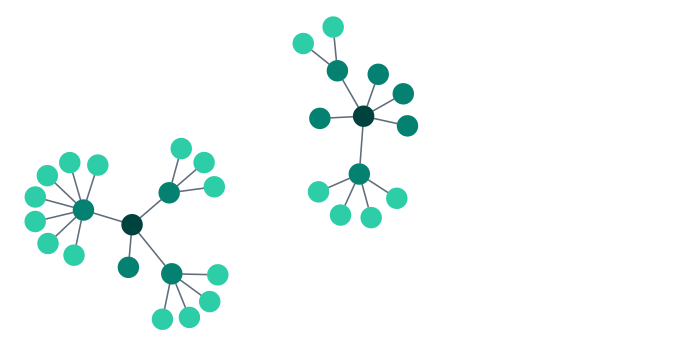
Structural
The structural layout functions in a similar manner to a force-directed layout, but it groups together nodes with the same neighboring nodes. This makes it easier to see the general organization of a network.
By giving you an overview of the clusters within a network, the structural layout allows you to see groupings and patterns without the need to focus on any one element.
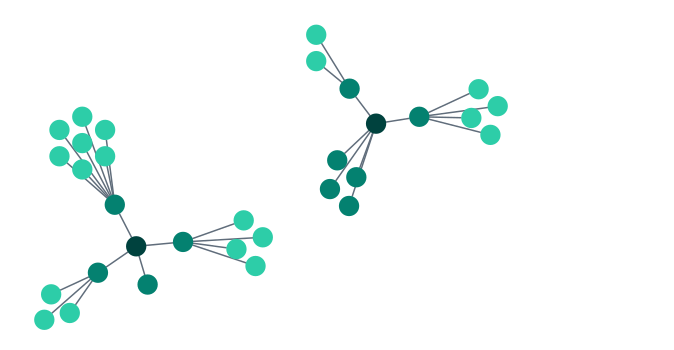
Sequential
The sequential layout is useful for displaying data with a clear sequence of links between distinct levels of nodes. It minimizes link crossings and makes efficient use of space, and is particularly well-suited to using an angled link shape, as shown.
Sequential automatically places nodes according to the specified orientation, and the direction of arrows on links. You can also customize the position of nodes using the level or top options, and refine the ordering in each level using orderBy.
When space is at a premium, you can use packing, stretch and stretchtype. You can also stack nodes with identical connections into grids using stacking, as shown in our Navigating Large Hierarchies story.
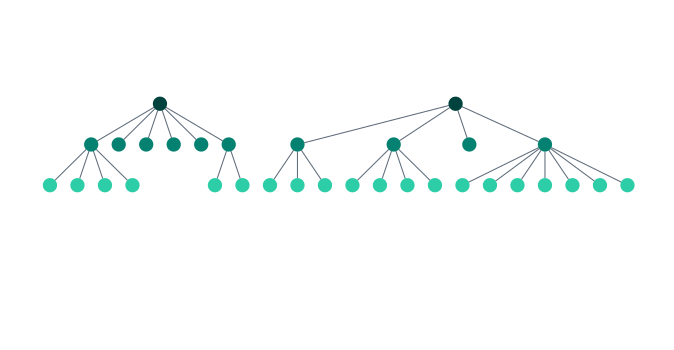
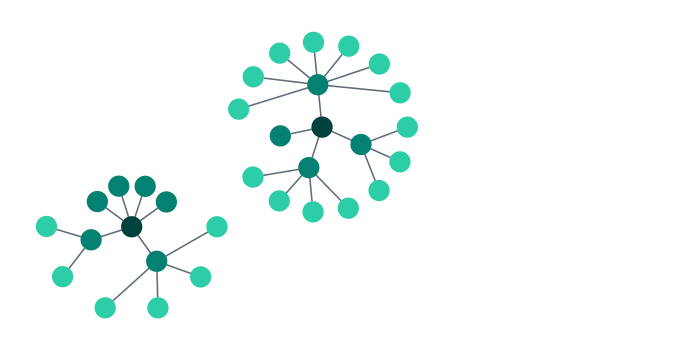
Radial
The radial layout arranges nodes in concentric circles around a selected subject in a radial tree. Each ‘generation’ of nodes becomes a new ring surrounding the previous generations.
This layout is a great option when dealing with networks with a large number of child nodes compared to the number of parents as it makes a good use of any available space.
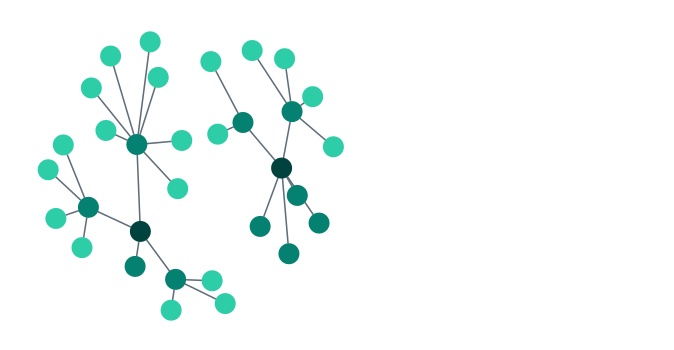
Lens
The lens layout pushes highly-connected nodes into the center, and forces less connected nodes outwards. Due to its circular arrangement, the lens layout makes good use of the available space and generally creates networks that are denser than other layouts.
Lens is the default layout for arranging items inside open combos, but you can also use the concentric arrangement.
Coordinates
There are two ways of representing coordinates on the chart.
World Coordinates represent an absolute position within the chart, where 0, 0 is the center of the chart. They correspond exactly to the positions of a node.
When integrating ReGraph with Leaflet, world coordinates are represented as lng, lat rather than x, y positions.
View Coordinates represent a pixel position relative to the viewport, where 0, 0 is the top-left corner of the view. The x, y position of an event, such as onClick, is reported in view coordinates. View coordinates change whenever the user pans the view.
To convert between world and view coordinates, you can use the viewCoordinates and worldCoordinates instance methods.
ReGraph Example
Log in to view live examplesRe-rendering in ReGraph
State management in ReGraph relies on immutability, a concept where a prop cannot be changed (mutated) directly once it's created, but it can be updated by replacing it with a new prop. On every render, ReGraph uses referential equality to decide whether any props have changed.
Whenever a new object is passed as a prop, ReGraph assumes something has changed and performs a re-render. If the same object is passed, ReGraph assumes nothing has changed. This is why ReGraph can quickly and efficiently respond to re-renders even in very large datasets.
To prevent unnecessary re-renders, applications must be disciplined in how props are updated. For example, passing a new object with identical property values into the layout prop will trigger a re-render that may change the positions of nodes.
If you want to change a sub-property on a prop that's an object (e.g. the items prop or others), you need to create a whole new object to make sure that ReGraph performs a re-render.
Consider the following object in the items prop:
items: {
  n1: {
    label: {
      color: 'blue', // <-- User changes a node's label color
      text: 'node 1'
    }
  },
  n2: {
    label: {
      text: 'node 2'
    }
  }
}
Let's say we change the n1's label.color property. If we simply mutate the n1 object and pass it into the items prop, the change won't be recognized and our chart will stay the same.
To correctly render the change, we have to create new objects for items and n1, and set a new value for color. You can see the properties that need to be re-created marked with a star below:
items*: {
  n1*: {
    label*: {
      color*: 'red',
      text: 'node1'
    }
  },
  n2: {
    label: {
      text: 'node 2'
    }
  }
}
Deep cloning creates a copy of all the object values, and all the values of all the nested objects within it. In comparison, shallow cloning would create copies of primitive values, but objects wouldn't be copied, only referenced, which would not be recognized during a re-render in ReGraph.
Let's use the example above to illustrate the difference between the two cloning techniques. You may choose to use object destructuring to create a new object that you can modify and pass back to ReGraph:
const shallowClone={...items}
shallowClone.a.color='red'
setItems(shallowClone) // doesn't work
This doesn't work as shallowClone.a equals items.a. The shallowClone.a is just a reference to items.a and ReGraph decides not to do a re-render as, apparently, nothing has changed.
This is what you would need to do instead:
const deepClone = window.structuredClone(items)
deepClone.a.color= 'red'
setItems(deepClone) // works
This does work as deepClone.a does not equal items.a and ReGraph will re-render. See this playground that shows both techniques.
Using object destructuring is possible, but you need to make sure that you don't accidentally pass any references to old objects. Here is an example of how to successfully do this:
// Clone the items object before making any changes
const newItems = Object.assign({}, this.state.items);

// Deep clone and update the item you want to change.
// If you're using spread operator, access nested properties
// to deep clone nested changes as well
const newItem = Object.assign({}, newItems.n1, {
  label: {
    ...newItems.n1.label,
    color: 'red'
  }
});

// Write the change back to the newItems object
newItems.n1 = newItem;

// Update app state and trigger a re-render
this.setState({ items: newItems });
Using deep cloning and immutability in your application code provides better performance, results in fewer unexpected side-effects, and lets you rewind or undo user actions. We use these patterns throughout our stories.
Chart Animation
When you pass a new state to the chart, ReGraph will calculate any differences between the new and existing states and animate the changes. The result is new nodes moving smoothly in and out of the chart from sensible origins, and layouts and property changes animating to let the end user follow the changes on-screen.
On any given update, ReGraph decides what animations are required and builds a queue of changes. It will then animate those changes in series until the Chart is in the right place. If state changes occur during animation, ReGraph will simply add more changes to the animation queue.
Animation should be switched off during drag events to ensure the drag is able to complete before any associated animations are run; see the Combos Drag and Drop story.
Update Order
State changes are often complex and so to effectively manage them ReGraph animates in a particular order:
- Set component options
- Hide maps
- Uncombine combos
- Remove, add and update nodes
- Arrange combos
- Run layout
- Display a map (Leaflet Integration)
- Update selection
To control the order of animations, it may be necessary to queue multiple state changes.
Duration
You can control the speed of animation via the animation prop. Passing a time value tells ReGraph how long it should take to animate each state update (in milliseconds). This time will be shared by whatever animations are required. So if ReGraph has 1000ms to animate new items being loaded into the chart, a layout which repositions nodes, and a change to node size, then each animation will run in about a third of a second.
The example below uses setInterval to add a new item to the chart every two seconds, triggering an animated layout.
ReGraph Example
Log in to view live examplesEvents
ReGraph comes with a number of default behaviors built in to respond to common user gestures. For example, clicking on a node or a link selects that item (updating selection state and drawing a halo around the selected item).
By passing functions through to the event props, you can both hook in to chart events (to know which item was clicked) and override default behavior (to stop the selection changing).
Event handlers will be called by ReGraph and passed a single object containing all the details of the event. Calling the preventDefault() function in these handlers will override any default behavior.
For example, to respond to the onClick event:
const handleClick = ({id, x, y, button, subItem}) => {
  // id: the node, link or navigation control that was clicked
  // x, y: the position of the item relative to the view
  // button: the logical mouse button that was clicked
  // subItem: the sub-item that was interacted with
};
<Chart items={items} onClick={handleClick} />
To prevent an item from being selected on onClick:
const preventSelection = ({preventDefault}) => {
  preventDefault();
};
<Chart items={items} onClick={preventSelection} />
p#events-subitems.
Some items on the chart can include sub-items. When you click on a sub-item, like a label,
details about it will be passed to the event handler.
const handleClick = ({id, x, y, button, subItem}) => {
  if (subItem && subItem.type === 'label') {
    // Label was clicked
  }
}
<Chart items={items} onClick={handleClick} />
Handle errors directly in the event listener:
const handleChange = (change) => {
  try {
    functionWhichMightThrow(change);
  }
  catch(e) {
    // handle the error
    console.error(e);
  }
};
The only exception to this are errors produced by onCombineNodes and onCombineLinks events. Their errors are logged to the console.
The firing order of chart pointer events is onPointerDown, onPointerMove, onPointerUp, onClick (updates selection), onChange (contains new selection).
See the API Reference for a complete list of events on the chart and time bar component. A detailed description of the sub-item type is available in the sub-item section of the API reference.
For interactive examples see Interaction / Events and Time Bar / Events stories.
View Control
When the Chart changes, ReGraph will automatically update the viewport to make it clear what is happening. This can mean zooming out to include hidden items before they change, or zooming in to remove 'whitespace' when removing or combining items.
You can customize this behavior using the fit Chart option.
<Chart items={items} options={{ fit: "all" }} />fit defaults to a value of 'auto'. This lets ReGraph decide how to adjust the view while minimizing disruption to the user's context. Alternatively, it can be set to fit all items, a specific set of items, or to not change at all. When setting the fit to a value other than 'auto', the view will only change at the end of an update.
You can set the view to a fixed position by setting the view prop, which disables all fit behaviors.
Use instance methods to pan(), zoom() or fit() the Chart explicitly, as shown in the Toolbar story.
Instance Methods
We expose additional methods on chart objects, which are available when you have a reference to an instance of a chart. Refs provide a way to access React elements created in the render method. For example, when you have a ref to a chart, you can call the ping method which will ping the clicked items in the chart. For all instance methods, see the API Reference.
Creating a ref in a functional component
If you are using React 16.8 or above then you have access to the hooks API and can use the useRef() hook in your functional components.
const MyFunctionalComponent = (props) => {
  const { items } = props;
  const chartRef = React.useRef(null);

  const ping = ({ id }) => {
    if (id) {
      chartRef.current.ping({ [id]: true });
    }
  };

  return (
    <Chart
      ref={chartRef}
      items={items}
      positions={positions}
      onClick={ping} />
  );
};
Chart Export
The export instance method generates a static image of the chart (or its current view) in PNG, JPG, SVG or PDF:
const MyFunctionalComponent = (props) => {
  const { items } = props;
  const chartRef = React.useRef(null);

  const downloadImage = () => {
    chartRef.current.export({ type: 'svg' }).then((exportedImage) => {
      exportedImage.download('regraph_image');
    });
  };

  return (
    <>
      <Chart ref={chartRef} items={items} />
      <button onClick={downloadImage}>
        Download image
      </button>
    </>
  );
};
The Export story shows how to get started with export.
For PNG and JPG, the maximum resolution that can be exported depends on the device/OS/browser and available memory. For all formats, the maximum size of the output should not exceed 100 megapixels.
If you are exporting into SVG and your charts include multiple different SVG images, make sure that SVG elements such as mask or pattern that have id property specified do not use duplicate ids between different SVG images.
PDF Export
PDF is the only output format that requires dependencies for export to work correctly. You need to add these dependencies to your project and import them in your app before you start exporting.
ReGraph supports PDF export in all modern browsers.
You can customize the PDF output by passing any PDFKit options for PDFDocument in the doc property, or even by passing your own PDFKit document.
When passing in a custom PDFKit doc to the export function, the download function cannot be used to download the PDF. You need to write your own download function. See the PDF Report story for an example.
Note that PDFKit supports 128 ASCII characters by default. To export non-ASCII characters, you need to embed your own font resources.
Right-to-Left Text
ReGraph supports multiple languages, including right-to-left (RTL) and bidirectional (BIDI) writing systems such as Arabic and Hebrew.
When RTL characters are detected, ReGraph applies RTL auto support by default. This is a reliable approach for a large scope of cases including:
- Mixed-system texts with both LTR and RTL characters
- Texts containing punctuation, numbers, emojis or other special characters
- Strings with symbols in strict functional order such as e-mail addresses or URLs
See the Right to Left Text story to see RTL auto support in action.
If you wish to always reverse the order of the whole text, or if you have specific requirements for more complex cases, you can use forced RTL mode:
<Chart dir="rtl" />You can also use control characters in the label text to embed a specific direction.
For more details on using control characters, see How to use Unicode controls for bidi text (W3C documentation). Note that this page references isolated control characters, which ReGraph doesn't support.
Leaflet Integration
You can use ReGraph with Leaflet.js to visualize and analyze geospatial data on a map.
While Leaflet provides a map to use as a background, ReGraph lays out the chart onto the map according to the latitude and longitude locations of nodes.
To integrate ReGraph with Leaflet, you must add Leaflet version 1.9.x to your project and import it into your app.
To display the map, set the map prop:
ReGraph Example
Log in to view live examplesReGraph uses OpenStreetMap as a default map tile provider.
When the map is displayed, there are some important behavioral differences in the chart:
- Nodes are positioned by lat and lng in
coordinates. Thepositionsprop is ignored. - Nodes without both
latandlngspecified are hidden. - The worldCoordinates method returns an object with
latandlngproperties. - Annotations are hidden as they are not supported.
- Links are always shown as direct links. See Link Shapes for details.
- Open combos are not supported.